Audio Tools
Utilities I build for my own studio — project management and housekeeping for music production, free to download. My VST plugins have their own home on the Six Walls page.
Links
- GitHub: github.com/Myvryn
Tools for Fender Studio Pro
A comprehensive utility suite for managing and archiving PreSonus Studio One music production projects.
OVERVIEW
Studio Pro Tools provides six integrated applications to streamline your Studio One workflow:
- Song Archiver – Analyse, inspect, and create optimised ZIP archives of your Studio One songs with detailed HTML documentation
- Un-Archiver – Restore a song from an archive ZIP and automatically fix its internal file paths
- Folder Sweeper – Identify and safely delete orphaned Studio One cache and temporary folders
- Song Backup – Synchronise song folders to a backup location, copying only new or changed files
- Song ReNamer – Rename the entire song package — folder,
.songfiles, and Mixdown/Master audio — in one step - Path Fixer – Detect and correct broken internal file paths in a
.songfile after it has been moved or restored
Updated Aug 18, 2026 (v1.3.1): Fixed a bug in Path Fixer that could corrupt a
.song file when the song folder name contained an & (or <,
>) — Studio One would then report the file as “corrupted” after paths
were fixed. See the Changelog below for details.
If you've run into this bug and can no longer open your .song file…
Versions of Path Fixer before v1.3.1 could leave a .song file with an invalid
character in it if the song folder’s name contained an &, which Studio
One then reports as a corrupted file. Re-running the updated Path Fixer on that same file
won’t help — it only rewrites paths when it detects a mismatch, and by then there
isn’t one. Instead, download this small repair script:
Repair-SongAmpersand.ps1, then run it from
PowerShell against the affected file:
.\Repair-SongAmpersand.ps1 -SongFilePath "C:\path\to\YourSong.song"
It scans the file for the exact character this bug leaves behind, fixes it, and saves a
.bak copy of the original before touching anything. If your file doesn’t
actually have this issue, it will say so and leave the file untouched.
Are you adventurous? — Mac Alpha
I don’t own a Mac. This macOS build was put together almost entirely blind — written, compiled, and cross-checked from Windows, with no way for me to actually click through it on real hardware. What I can say: it builds clean, it produces a genuine native macOS binary, and every automated check I have access to passes. Whether it actually opens and works on your machine is, honestly, still an open question.
Covered so far: Path Fixer, Un-Archiver, Folder Sweeper, and Song Backup. Not yet ported: Song Archiver and Song ReNamer (their cards show as disabled “Coming soon on Mac”), and there’s no audio preview yet anywhere.
If you’re willing to try genuine alpha software on your own Mac, it’s yours for the grabbing:
How to open it (it’s unsigned)
This isn’t notarized through Apple, so Gatekeeper will block a plain double-click the first time. Unzip it, then either:
- Right-click (or Control-click) the app → Open → confirm Open in the dialog. If that dialog only offers “OK”, go to System Settings → Privacy & Security and look for an “Open Anyway” button near the bottom — or
- Open Terminal and run:
chmod +x StudioOneTools.Avalonia && xattr -d com.apple.quarantine StudioOneTools.Avalonia, then double-click it normally.
I’d love screenshots — of it working, or of it breaking. Either is genuinely useful. Send them to studioonetools@eddyjones.com or open an issue.
Send comments, bug reports, or just a general “Hey there!” to studioonetools@eddyjones.com.
Disclaimer: Eddy Jones is not affiliated with, endorsed by, or sponsored by PreSonus, Fender, or their subsidiaries. PreSonus, Studio One, and Fender are trademarks of their respective owners. This software is provided free of charge on an “as-is” basis, without warranty of any kind. Use it at your own risk — I am not responsible for any lost, corrupted, or damaged files. Always keep your own backups.
That being said, I use this software myself on my own music.
READ MORE...
Features
Song Archiver
- Complete Song Analysis
- Identifies all referenced audio media files (used vs. unused)
- Detects missing referenced WAV files with warnings
- Lists all plugins and instruments used in the song
- Associates plugins with their respective channels and tracks
- Auto-deduplicates versioned plugin names (e.g., “StudioRack Stereo 4” → “StudioRack Stereo”)
- Discovers preview files from Mixdown and Master audio
- Smart Media Management
- Optional inline playback of WAV files with visual progress tracking
- Choose to include or exclude unused media when archiving
- Optional Mixdown and Master file inclusion in the archive
- Archive Generation
- Creates a single ZIP file with only the media files your song actually uses
- Generates a comprehensive HTML report with song metadata and media inventory
- Optional embedded XML debug files for technical inspection
- Post-Archive Options (via completion dialog)
- Remove song from Studio One’s Recent Documents list (default: on)
- Delete the original song folder after archiving
- Open the archive folder in Explorer
Un-Archiver
- One-Click Restore
- Select any ZIP archive created by Song Archiver
- Choose a destination folder (defaults to your configured Default Song Folder)
- Extracts into a new subfolder named after the archive file
- Automatic Path Fixing
- Immediately runs Path Fixer on the restored
.songfile - Updates all internal
file://references from the original location to the new one - Studio One can open the song and find all media files without manual relinking
- Immediately runs Path Fixer on the restored
- Result Summary
- Reports how many internal paths were corrected
- Offers to open the extracted folder in Windows Explorer
Folder Sweeper
- Automated Scanning
- Pre-populates with your Default Song Folder and scans immediately on startup
- Identifies junk Studio One cache, temporary, and orphaned folders
- Categorises flagged folders by reason (e.g., “No .song file”, “Not modified in over a year”)
- Safe Deletion
- Checkbox list with full path and reason for each flagged folder
- Select individual folders or use Select All / Deselect All
- Confirmation dialog before anything is removed
- Remove from Recent Documents checkbox (default: on) — cleans up Studio One’s recent file list for deleted songs automatically
- Seamless Integration
- Right-click any row to Open in Explorer or Send To Archiver
Song Backup
- Smart Synchronisation
- Scans a root folder and lists all song subfolders containing
.songfiles - Copies only files that are new or have been modified since the last backup
- Skips files already up to date — fast incremental runs after the first
- Scans a root folder and lists all song subfolders containing
- Selective Backup
- Checkbox list to include or exclude individual song folders
- Select All / Deselect All for bulk selection
- Songs folder and backup destination remembered between sessions
- Backup Confirmation Dialog
- Preview which songs will be backed up and how many files each requires
- Toggle “Include unused audio takes from tracks” — file counts update live
Song ReNamer
- Full Package Rename
- Renames the song folder, all
.songfiles that match the old name, and any Mixdown/Master audio files that start with the old name - Updates internal file references inside
.songarchives automatically
- Renames the song folder, all
- Default Name Detection
- Detects Studio One’s default
Username_YYYY-MM-DDnaming pattern and flags it with a badge - Smart name suggestions from
.songfiles found inside the folder
- Detects Studio One’s default
- Preview Playback
- Listen to the latest Mixdown or Master audio before renaming to confirm you have the right song
Path Fixer
- Path Mismatch Detection
- Reads the path stored inside the
.songfile and compares it to the file’s current location - Displays both the stored path and the current path side-by-side
- Shows how many internal references need updating
- Reads the path stored inside the
- In-Place Repair
- Rewrites all
file://URLs across every XML file inside the.songZIP in a single pass - Handles songs moved between drives, users, or computers
- Leaves all other file content untouched
- Rewrites all
- Safe Operation
- Shows a warning to back up before proceeding
- Uses a temporary file during rewrite — original is only replaced on success
- Re-analyses the file after fixing so the result is immediately confirmed
Installation & Usage
Running the Application
- Download
StudioOneTools.exefrom thepublish/folder - Run the executable — no installation required (portable)
- Choose your tool from the home screen
Song Archiver Workflow
- Select Song Folder — click Browse or paste the path; analysis starts automatically
- Review Analysis — inspect used/unused WAV files, plugins, and any issues
- Configure Archive — choose Retain Mixdown / Retain Master files, set archive destination
- Create Archive — optionally include unused media, remove from recent docs, delete original, open folder
Un-Archiver Workflow
- Select Archive — click Browse and choose a
.zipfile created by Song Archiver - Select Destination — choose the folder where the song will be extracted (defaults to Default Song Folder)
- Review Preview — the “Will extract to” field shows the exact folder that will be created
- Extract & Fix Paths — extracts the ZIP, then automatically fixes all internal paths
- Open Folder — optionally open the extracted song folder in Explorer
Folder Sweeper Workflow
- Select Root Folder — pre-populated from settings; scanning starts automatically on open
- Review Flagged Folders — each row shows folder name, reason, and full path
- Select & Delete — check folders to remove, optionally keep “Remove from Recent Documents” on
- Confirm — deletion prompt shows count before anything is removed
Song Backup Workflow
- Select Songs Folder — lists all subfolders containing
.songfiles automatically - Select Songs to Back Up — check/uncheck individual songs
- Choose Backup Destination — remembered between sessions
- Click Backup — review file counts in the confirmation dialog, then start
Song ReNamer Workflow
- Open Song Folder — analysis runs automatically
- Review Analysis — check for default name badge and suggestion chips
- Optionally Preview — play the Mixdown or Master to confirm the right song is open
- Choose New Name — click a suggestion chip or type directly
- Click Rename — all files and internal references are updated in one step
Path Fixer Workflow
- Select a .song File — click Browse; analysis runs automatically
- Review Paths — stored path vs current path displayed side-by-side
- Click Fix Paths — confirm the warning, then all internal references are updated
- Verify — the panel re-analyses and confirms paths are now correct
Settings
Access Settings (⚙ icon in Song Archiver) to configure:
| Setting | Description | Used by |
|---|---|---|
| Default Song Folder | Pre-populates song folder fields and auto-scans on open | Archiver, Sweeper, Un-Archiver (destination) |
| Default Archive Folder | Default destination for new archives | Song Archiver |
| Default Backup Folder | Default backup destination | Song Backup |
| Default Rename Folder | Remembered after each rename session | Song ReNamer |
| Debug Mode | Include XML schema reports in archives | Song Archiver |
Settings are stored in %APPDATA%\StudioOneTools\settings.json.
System Requirements
- Windows 10 or later (64-bit)
- .NET 10 Runtime (bundled in the single executable)
- PreSonus Studio One (any recent version with
.songfile format)
Architecture
- Built on .NET 10 with C# 14 and WPF
- Multi-layered design:
- Core – Domain models and interfaces
- StudioOne – Studio One file format parsing, analysis, and path handling
- App – User interface and orchestration
Known Limitations
- Only supports
.songformat (PreSonus Studio One files) - Media file playback is audio-only (no video support)
- Song Backup does not delete files removed from the source — it is additive only
- Song ReNamer only renames Mixdown/Master audio files at the top level of those subfolders
- Path Fixer rewrites paths based on the
documentPathstored inmediapool.xml— if that entry is missing or malformed, the tool will report an error
Troubleshooting
“No .song files found in the selected folder”
Ensure you selected the song folder directly — the one containing the .song file — not a parent directory.
“Referenced media file is missing”
One or more WAV files referenced in the song do not exist on disk. Locate and relink them in Studio One, then re-analyse.
“Could not find the stored song path (documentPath)”
The mediapool.xml inside the .song file does not contain a documentPath entry. Use Studio One to open and re-save the file, then try again.
“A folder named X already exists at the destination” (Un-Archiver)
The Un-Archiver will not overwrite an existing folder. Rename or move the existing folder, or choose a different destination.
Path Fixer shows “Paths are correct — no fix needed” but Studio One still reports missing files
The internal paths match the current location, but the media files themselves may have been moved or deleted. Check that the Media/ subfolder is present and contains the expected WAV files.
All WAV files show as “not used” in the Archiver
This typically happens when the song has been moved from its original location. Use Path Fixer to update the internal paths, then re-analyse in the Archiver.
Song Backup shows 0 files to copy
All files are already up to date in the backup destination. If you expected changes, confirm you are pointing at the correct backup folder.
Folder Sweeper flags folders I want to keep
Leave those checkboxes unchecked before clicking Delete. Nothing is removed without explicit selection and confirmation.
Changelog
v1.3.1 — August 18, 2026
- Fixed: Path Fixer could write invalid XML into a
.songfile when the destination song folder name contained an&(or<,>,",'). The corrected path was spliced back into the file’s internal XML without being escaped, producing a bare&that Studio One’s parser rejects — so the “fixed” file would load as “corrupted” on next open. Path Fixer (and the automatic path-fixing step in Un-Archiver) now XML-escapes the replacement path before writing it.
RA Plugin Manifest Editor
A small desktop companion for Rocksolid Audio’s RA Control that lets you curate the plugin list its “Insert Plugins” activity shows — check off the plugins cluttering that list and remove them, instead of hand-editing the underlying XML.
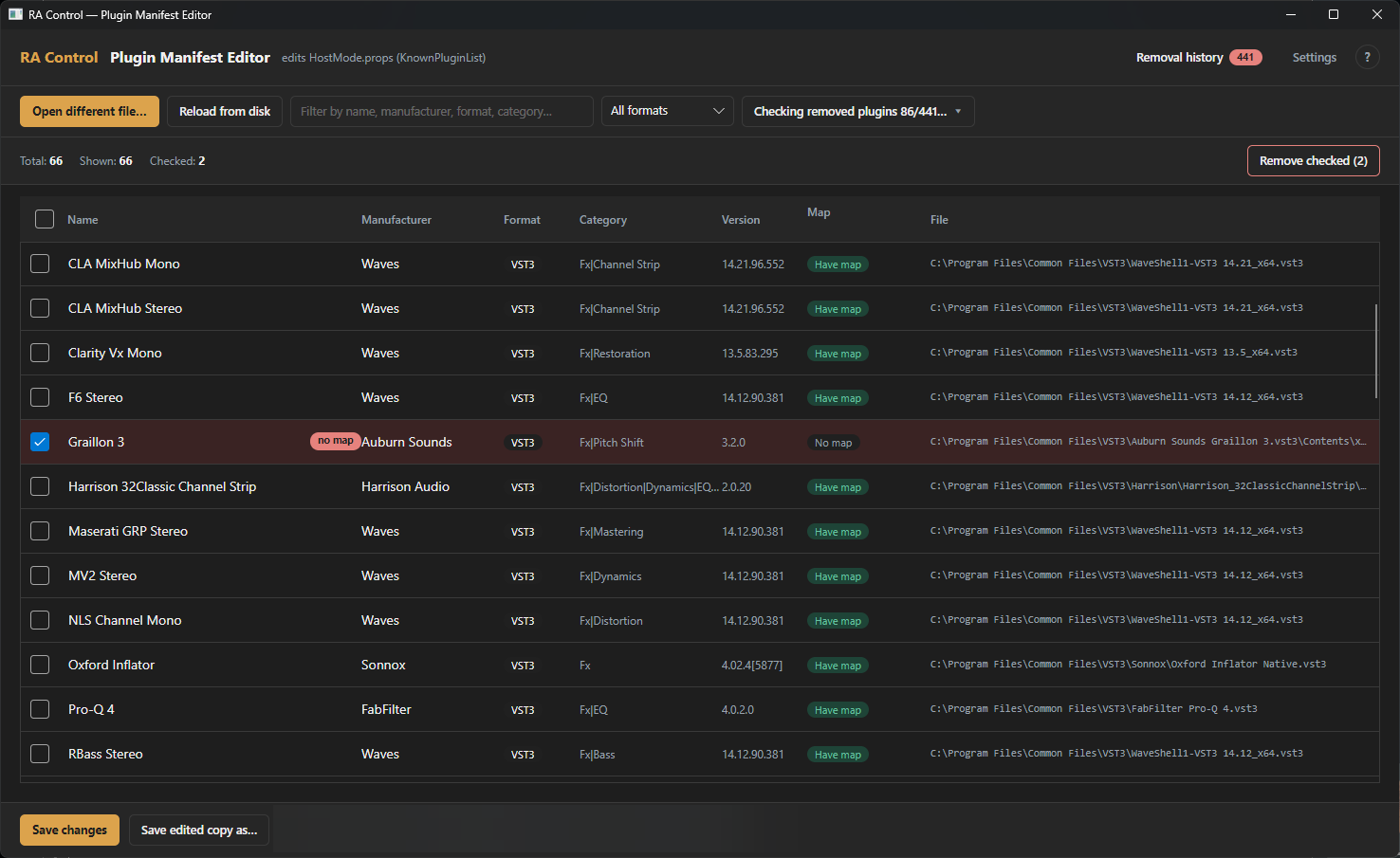
FEATURES
- Filter, sort, and bulk-select plugins by name, manufacturer, format, or category
- Removes checked plugins from the manifest with a confirmation step
- Automatic timestamped backup written before every save
- Persistent removal history — auto-reselects a plugin if RA’s own scanner adds it back
- One-click Restore puts a removed plugin back without reloading the whole file
- Warns you if you click Save with plugins checked but never actually removed
- Flags plugins missing a control Mapping from RA Control, so you know what still needs setup
- Built-in Help panel (the “?” next to Settings) walks through everything the app does
The Mac builds are cross-compiled from Windows and untested on real Mac hardware. They’re
unsigned, so Gatekeeper will block a plain double-click — right-click the app →
Open, or in Terminal run
chmod +x RAPluginManifestEditor && xattr -d com.apple.quarantine RAPluginManifestEditor.
Disclaimer: Eddy Jones is not affiliated with, endorsed by, or sponsored by Rocksolid Audio. RA Control and related names are trademarks of their respective owners. This software edits a local configuration file and is provided free of charge on an “as-is” basis — use at your own risk. It writes an automatic backup before every save, but always keep your own backups too.
Changelog
v1.1.0 — August 21, 2026
- New: Map availability checking — cross-checks each plugin against RA Control’s own local map cache and flags anything missing a control Mapping, so you know what still needs to be set up in RA Control. No network access required.
- New: Built-in Help panel — the “?” icon next to Settings opens an in-app walkthrough of everything the tool does.
- Improved: Toolbar cleanup — map-checking actions are now grouped into a single “Maps” menu, and a standard select-all checkbox in the plugin table header replaces the old “Check all filtered”/“Uncheck all” buttons.
- Improved: “Removal history” moved next to Settings for quicker access.
- Improved: Local app settings are now encrypted at rest on Windows.